
Grid View lets you evaluate a whole class on one screen. Each person is a row and each skill is a column, so you can give each person their own result.
Before you start: the class needs a checklist level. Open the class, click Settings, choose a level under Checklist level taught, and click Save.
Open Grid View
To open Grid View, follow these steps:
- Go to Classes and open your class.
- Optional: mark attendance. Only people marked Present or Late appear in the grid. If nobody is marked, everyone appears.
- Click Evaluate the class.
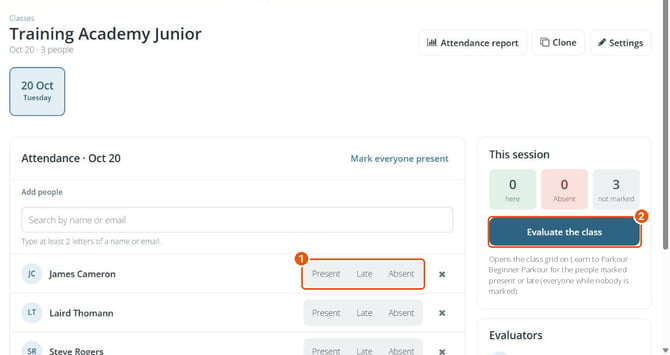
Enter results
Tap a cell to record a result for that person and skill. Each skill type works a little differently:
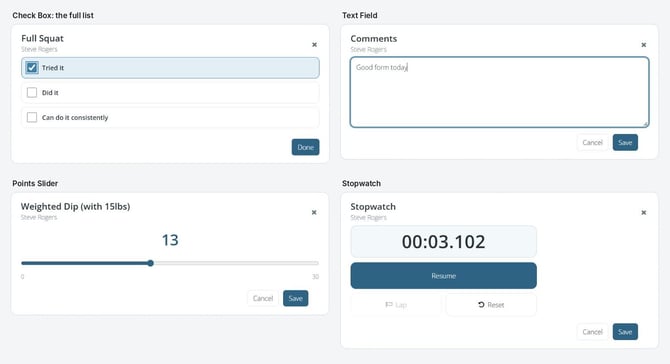
- Check Box: tap the box to tick it. Tap the choice name to move to the next box. Hold the cell, or press Shift+Enter, to see every box.
- Radio Button: tap to step through the choices. Tap again after the last choice to clear it.
- Text Field: tap, type, then click Save.
- Points Slider: tap, drag the slider to the score, then click Save.
- Stopwatch (Alpha): tap, click Start and Stop, then click Save. Start all times everyone at once.
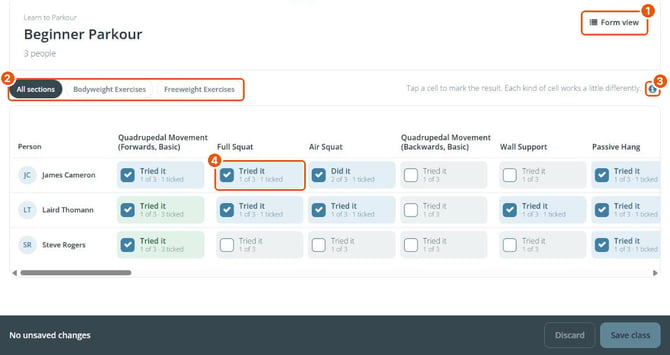
Form view (1), section filters (2), help icon (3), Check Box cell (4).
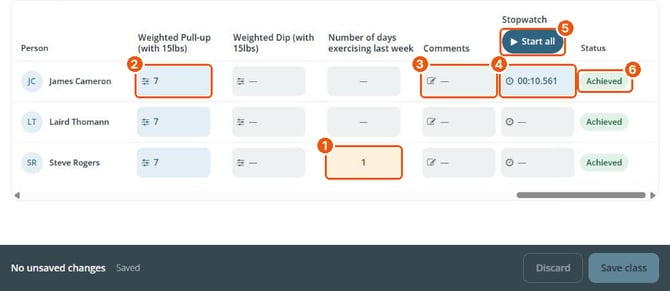
Radio Button (1), Points Slider (2), Text Field (3), Stopwatch (4), Start all (5), Status (6).
Tip: click a section name above the grid to show only that section's skills. Click the i icon for a reminder of how each cell works.
Save your changes
To save your changes, follow these steps:
- Click Save class at the bottom right.
- Check that the bar reads No unsaved changes.
A cell with a dashed border is not saved yet. Text Field, Points Slider and Stopwatch results save as soon as you click Save in their pop-up.
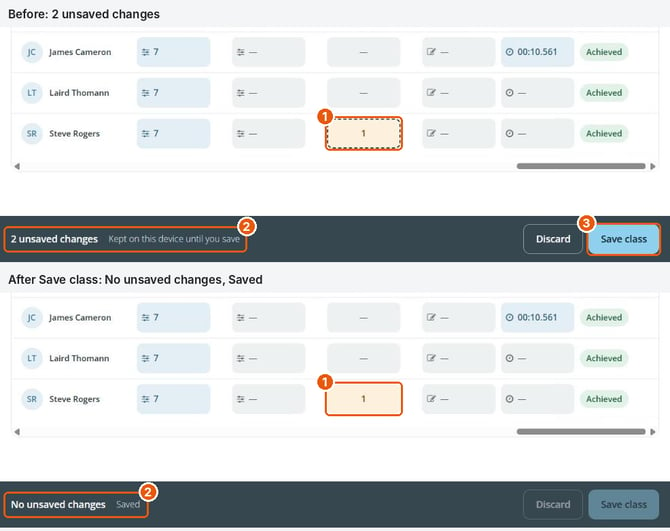
Before saving, the cell has a dashed border (1) and the bar counts your changes (2). After Save class (3), the bar reads No unsaved changes.
Some quick tips:
- Unsaved changes stay on your device, even with no signal, until you click Save class.
- To change a level status (Unstarted, In Progress or Achieved), click Form view and use the Status buttons.
- In Form view, what you save applies to everyone selected. Use it to give the whole class the same result.