
Need to send the same email to a group of people? You can do it from the People page in a few clicks. This article uses the new People page. If you still see the classic page, click New in the banner at the top to switch.
Email a group of people
- Go to the People page.
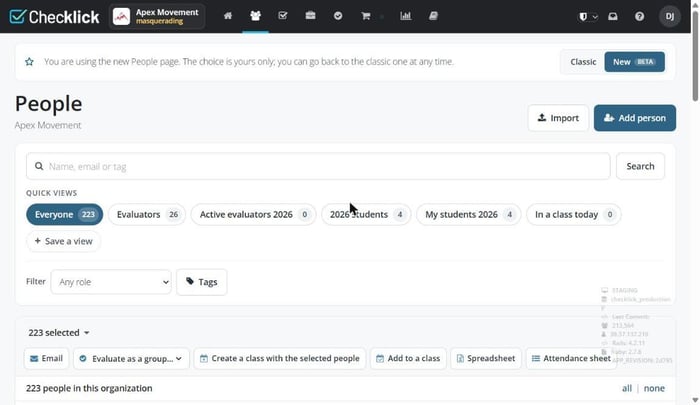
- Find the group you want to email. You can:
- Type a name, email or tag in the search box and click Search.
- Click a quick view, such as Everyone or Evaluators.
- Use the Filter dropdown to pick a role: Managers, Evaluators, Active evaluators or Affiliated.
- Check who is selected. Everyone in the results is selected by default, shown by the checkbox next to each name. Uncheck anyone you don't want to email, or use all and none above the list to select or clear everyone at once.
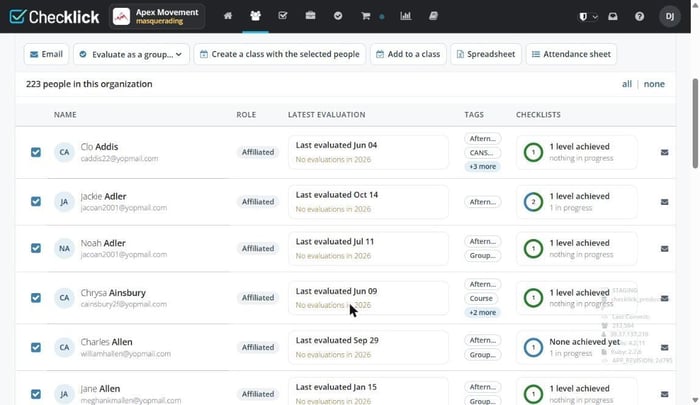
- Click Email in the action bar above the list. The New email window opens with your selected people in the To field.
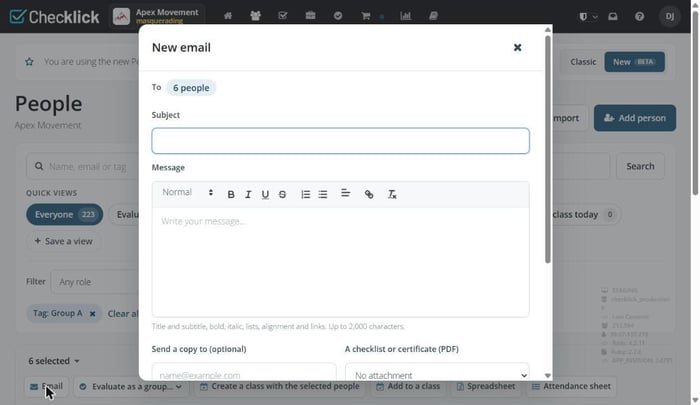
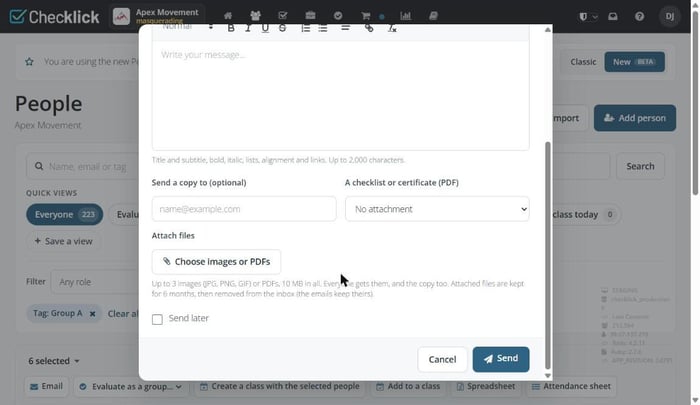
- Add a subject and write your message. If you like, add a copy recipient, attach a checklist or certificate PDF, or attach up to 3 images or PDFs (10 MB in total).
- Click Send. To send it at a later time, tick Send later first.
Email everyone with a specific tag
Use the Tags filter to narrow your list, then email the people who match.
- Go to the People page.
- Click Tags next to the role filter. The Tags panel opens on the right.
- Tick the tag you want. You can search tags in the box at the top, or switch between All, Labels and With values. The number beside each tag shows how many people have it.
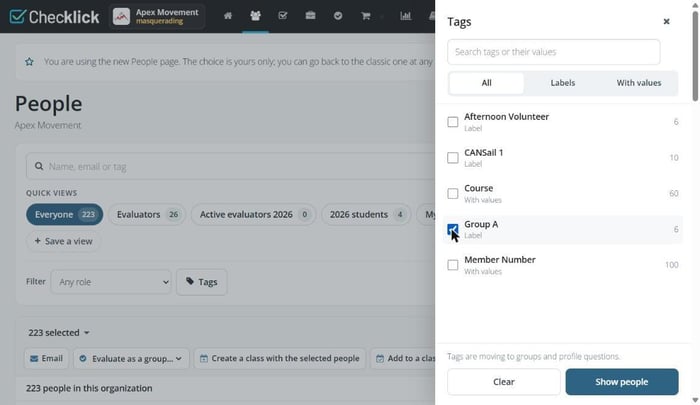
- Click Show people. The tag appears as a chip under the filters, and the selected count updates.
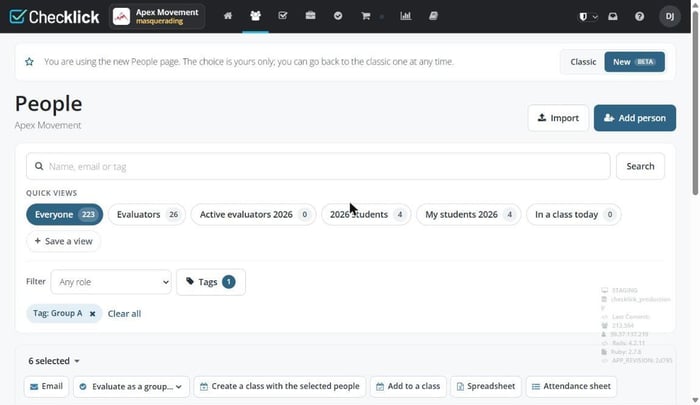
- To email only one role within that tag, pick it in the Filter dropdown.
- Uncheck anyone you don't want to email, then click Email, write your message and click Send.
To remove a tag filter, click the x on its chip or click Clear all.
Before you send
- Check the selected count (for example, 6 selected) and the To field in the email window. Click the count to see who is selected.
- Search looks across names, emails and tags, so one term can match more than one field. Review the results before you email.
- Want to reuse a group? Click Save a view to keep your search and filters as a quick view.